Do you want to lock and password protect your important folders in Windows 10/8/7/Vista/XP? If you have some sensitive files such as photos, videos or documents that you don't want anyone else to see, the best solution is to lock and password protect them in a folder.
Protect My Folders is a folder security software for everyone who is concerned about privacy and confidentiality of the files stored in the computer. With this program you can hide your private files so that other users will not be aware of their existence, or lock your personal folders and prevent them from being seen, copied, modified and deleted.
How to Lock and Password Protect A Folder in Windows
- Download the Protect My Folders application. Install it on your computer.
- For the first time usage, it will ask you to set a password to
prevent others from accessing this application. Just enter the password
to open main interface.
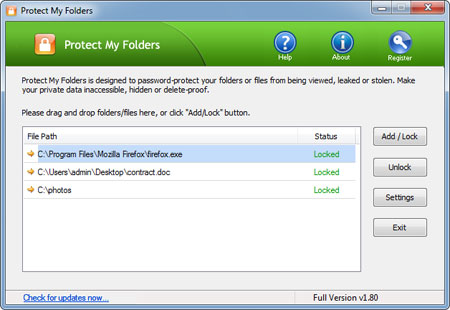
- Now, click the "Add/Lock" button, the Add Files and Folders dialog will appear. Select a folder and file you want to lock and press OK.
- Now you'll notice the selected folder or file has disappeared from its former location. Even if you try to copy, delete, move or rename the parent directory of your protected folder or file, you'll keep getting the "Access Denied" error.
- Exit the Protect My Folders application. The protected folder or file remains protected.



 enjoy it
Method 1: Windows Password Hint
When setting a Windows password on Windows 8, you are able to create a hint to help you remember the lost or forgotten Window password. Of course, the password hint will not appear until you input a wrong Windows password. With the help of hint, you can easily to remember the forgotten password.Method 2: Use Password Reset Disk
You can easily create a password reset disk in Windows 8 if you can log on your computer. The password reset disk can help you reset Windows password when you forget Windows password. No need to worry about anything if you have a password reset disk. But in fact, many users forget to create a password reset disk before lost Windows password.Method 3: Reset Windows Password by Another Available Admin Account
If you are able to log in your computer with built-in administrator account or other available admin account, Windows password reset can be very simple for you. After logging on computer, just click My Computer icon to select Manage to enter Computer Management screen, and then click Local Users and Groups folder and Users folder. All Windows accounts will be displayed for you. Right-click the account you want to edit and select Reset Password to reset your lost Windows password.Method 4: Recover Windows Password with Ophcrack
Ophcrack is an open source Windows password recovery tool based on rainbow tables. The program contains the ability to import the hashes from a variety of formats, including dumping directly from the SAM files of Windows. It is claimed that these tables can crack 99.9% of alphanumeric passwords of up to 14 characters in usually a few minutes.Method 5: Reset Windows Password by Third-party Software
With respect to get rid of forgotten Windows 8 password, you can still resort to Windows password recovery software to reset Windows 8 password.- Download the self-extracting Zip file of PCUnlocker package.
- Uncompress the package, there is a ISO image: pcunlocker.iso. Burn it onto a CD/DVD or USB flash drive.
- Boot your locked computer from the newly burned CD/DVD or USB flash drive.
- Wait until the boot process is finished. When a window pops up with all your Windows accounts, select the target one to reset the password.

If you still don't know which method is appropriate for you, just take advantage of the PCUnlocker utility. It's quite easy to use, even a computer newbie can use it to reset forgotten Windows 8 password in a few minutes. Good luck