Do you want to lock and password protect your important folders in Windows 10/8/7/Vista/XP? If you have some sensitive files such as photos, videos or documents that you don't want anyone else to see, the best solution is to lock and password protect them in a folder.
Protect My Folders is a folder security software for everyone who is concerned about privacy and confidentiality of the files stored in the computer. With this program you can hide your private files so that other users will not be aware of their existence, or lock your personal folders and prevent them from being seen, copied, modified and deleted.
How to Lock and Password Protect A Folder in Windows
- Download the Protect My Folders application. Install it on your computer.
- For the first time usage, it will ask you to set a password to
prevent others from accessing this application. Just enter the password
to open main interface.
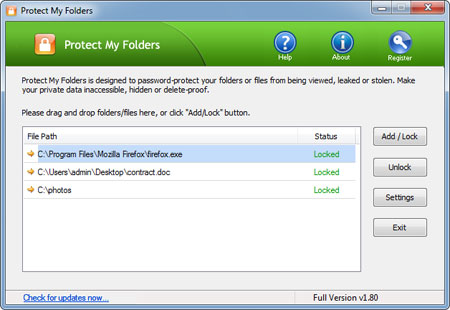
- Now, click the "Add/Lock" button, the Add Files and Folders dialog will appear. Select a folder and file you want to lock and press OK.
- Now you'll notice the selected folder or file has disappeared from its former location. Even if you try to copy, delete, move or rename the parent directory of your protected folder or file, you'll keep getting the "Access Denied" error.
- Exit the Protect My Folders application. The protected folder or file remains protected.

